
Connect with computer and MC-X access point
Note: This method of connection is available after you have a programming cable or wireless pairing connection. Access points are disabled by default from the factory. It is necessary to enable the access point setting: Select .
To connect with an access point: - Enable Wi-Fi on your computer or smart device.
- Find the MC-X SSID of the MC-X on your computer.
- Enter the password when prompted. The default password is 000 and the last five digits of the MC-X serial number (example:
00012345).ADDITIONAL INFORMATION:The Wi-Fi connection is made. - Enter 192.168.0.1 in the address bar to connect to MCWEB.ADDITIONAL INFORMATION:
Figure: MCWEB 
- The Role field default value is
admin. Enter your Password.ADDITIONAL INFORMATION:Note: To log into MCWEB the first time, the Role field defaults to theAdminvalue, but the Password field is blank. A factory reset may be necessary for you to create a new password.Figure: MCWEB login 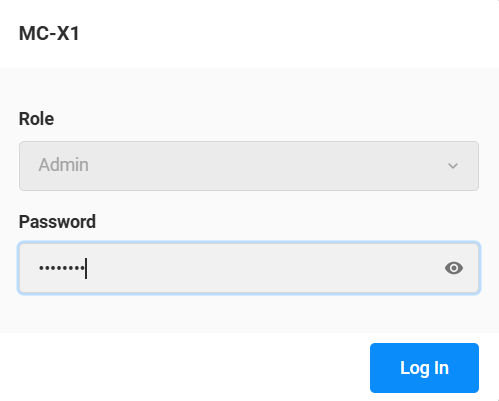
- Select Log In.ADDITIONAL INFORMATION:
myTopcon NOW! support
Take your Topcon experience to the next level with myTopcon NOW! This platform is a self-service tool for your desktop or mobile device.





