Caution: Pairing is only possible at a short distance of approximately 16 ft (5 m). Also, it is necessary for security to do pairing only in a controlled environment. This prevents possible security attacks and supplies protection of the hotspot credentials.
You can pair one tablet to one MC-X controller or pair one tablet to multiple MCX devices and switch between those paired devices.
Proceed based on the wireless tablet:
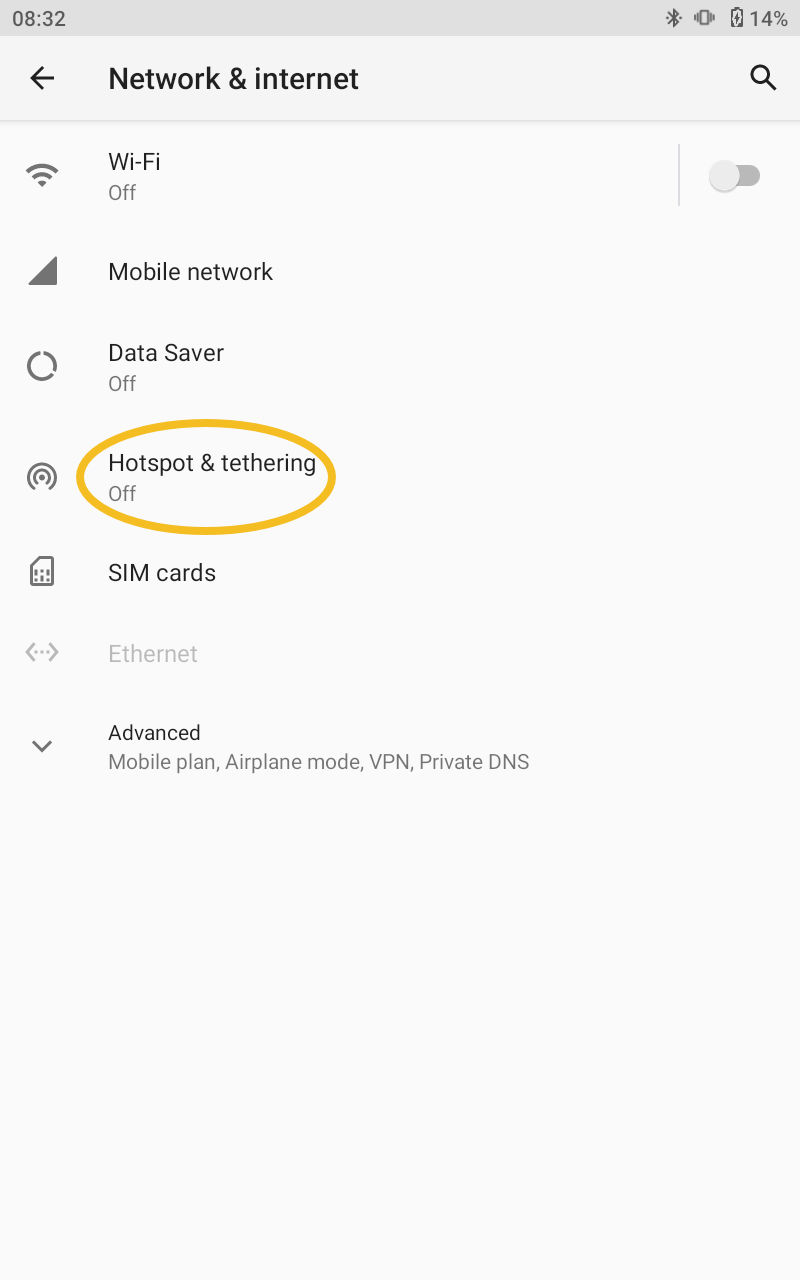
On the CT8X2: Go to the Network and Internet settings
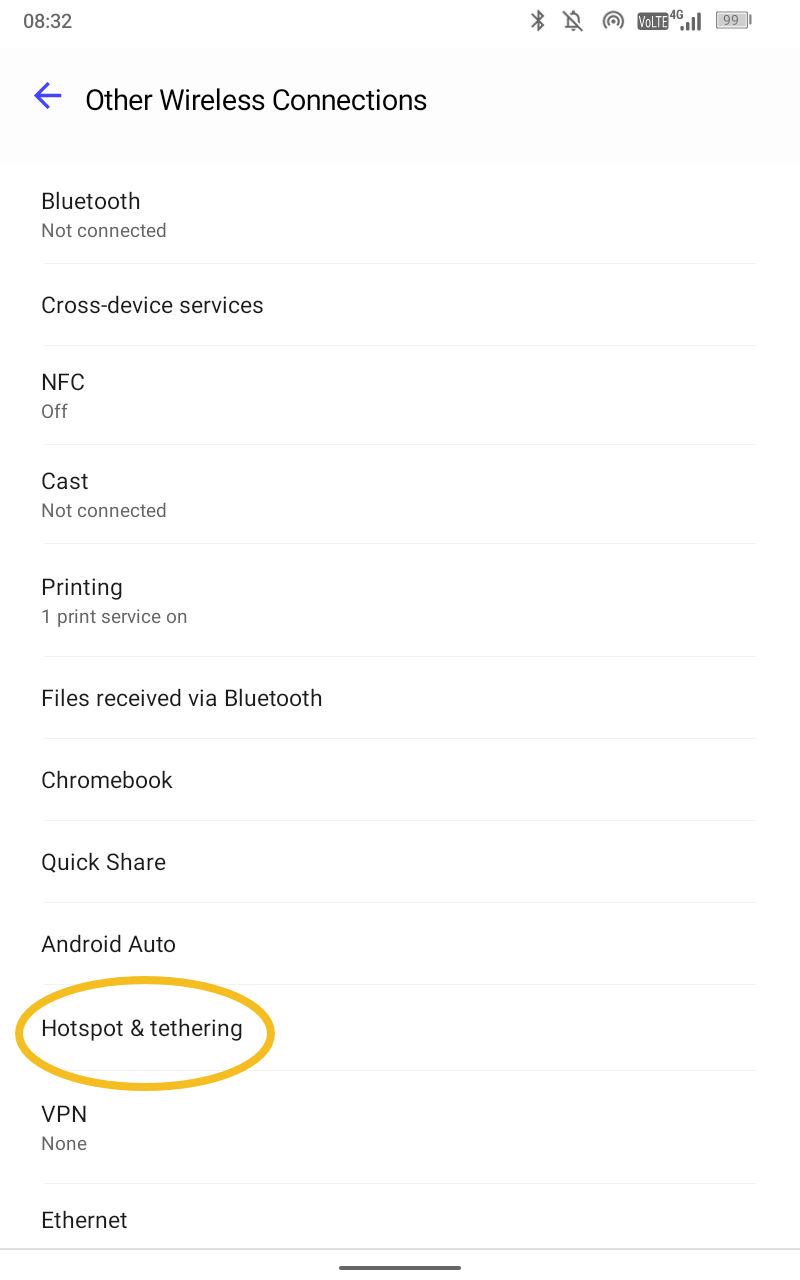
On the GX-10W: Go to Other Wireless Connections
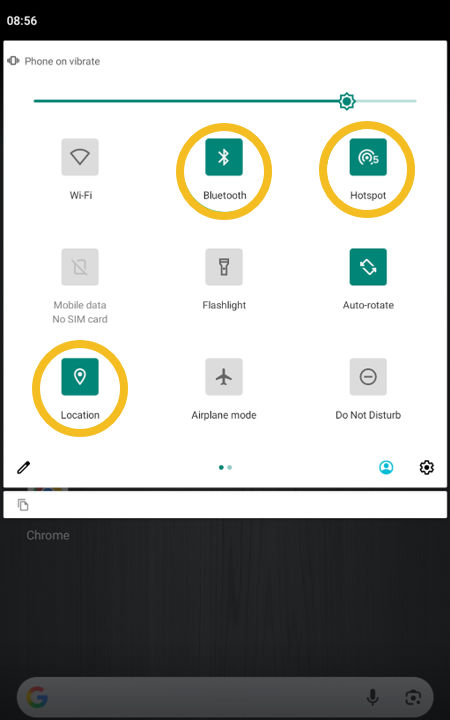
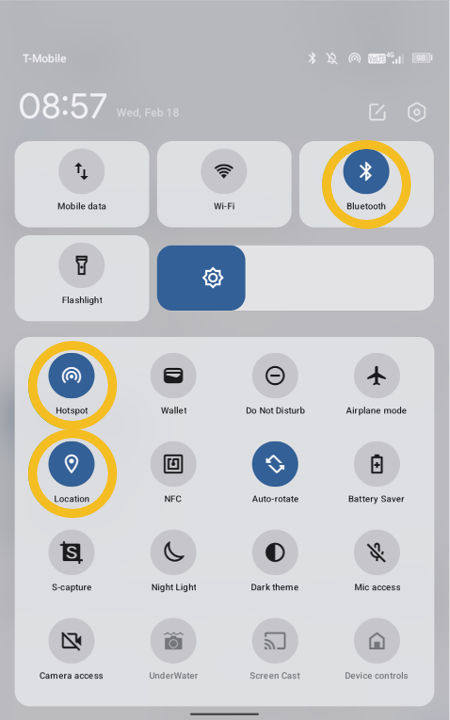
Make sure that Bluetooth, Hotspot, and Location are enabled. This is necessary for the system to connect correctly. DO NOT enable the Wi-Fi.
ADDITIONAL INFORMATION:
Make sure that the Wi-Fi status shows as Off.
Select Hotspot & tethering to show the Hotspot Settings menu.
ADDITIONAL INFORMATION:
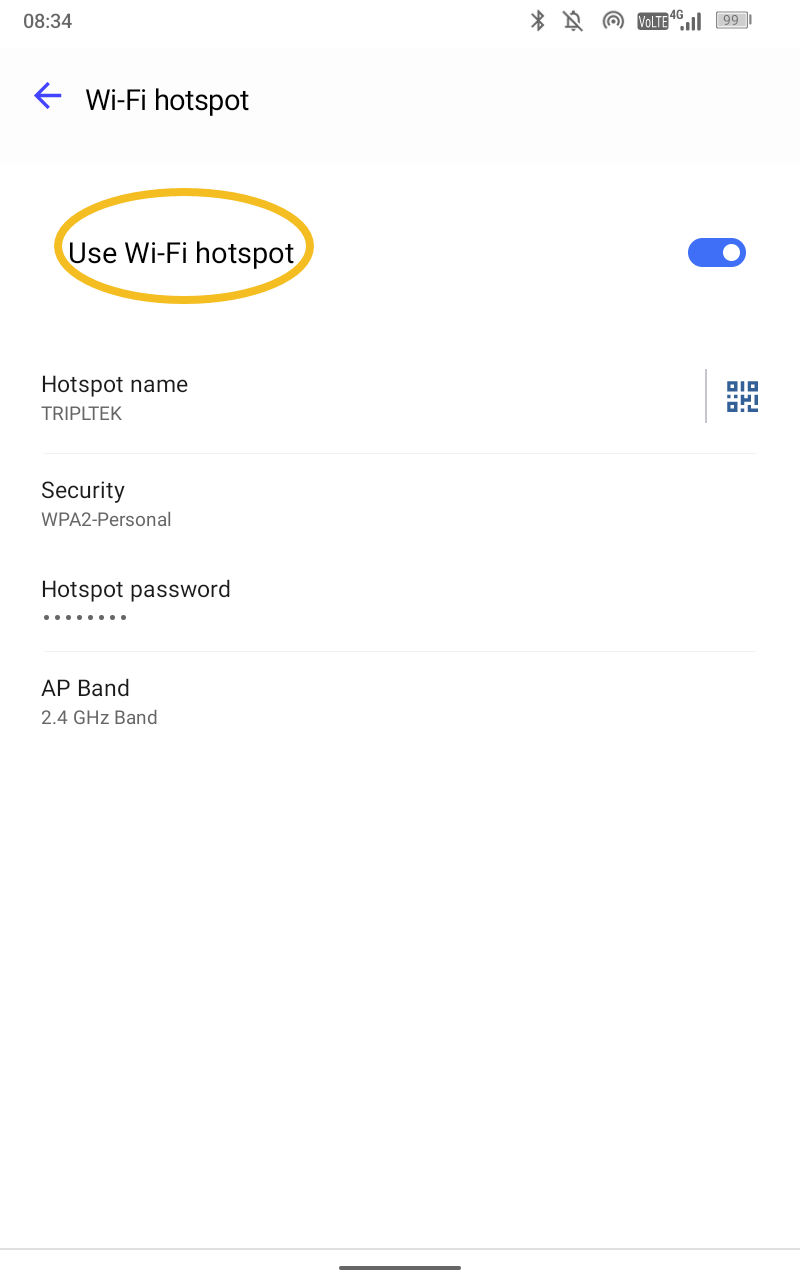
Make sure that Wi-Fi Hotspot is ON. The slider bar/dot are in color when the hotspot is ON.
ADDITIONAL INFORMATION:
Enter the Hotspot password.
Record the hotspot name and password. This information is necessary to connect to the machine in 3D-MC.
Select Done. The wireless display can communicate with the MC-X1 at this time.
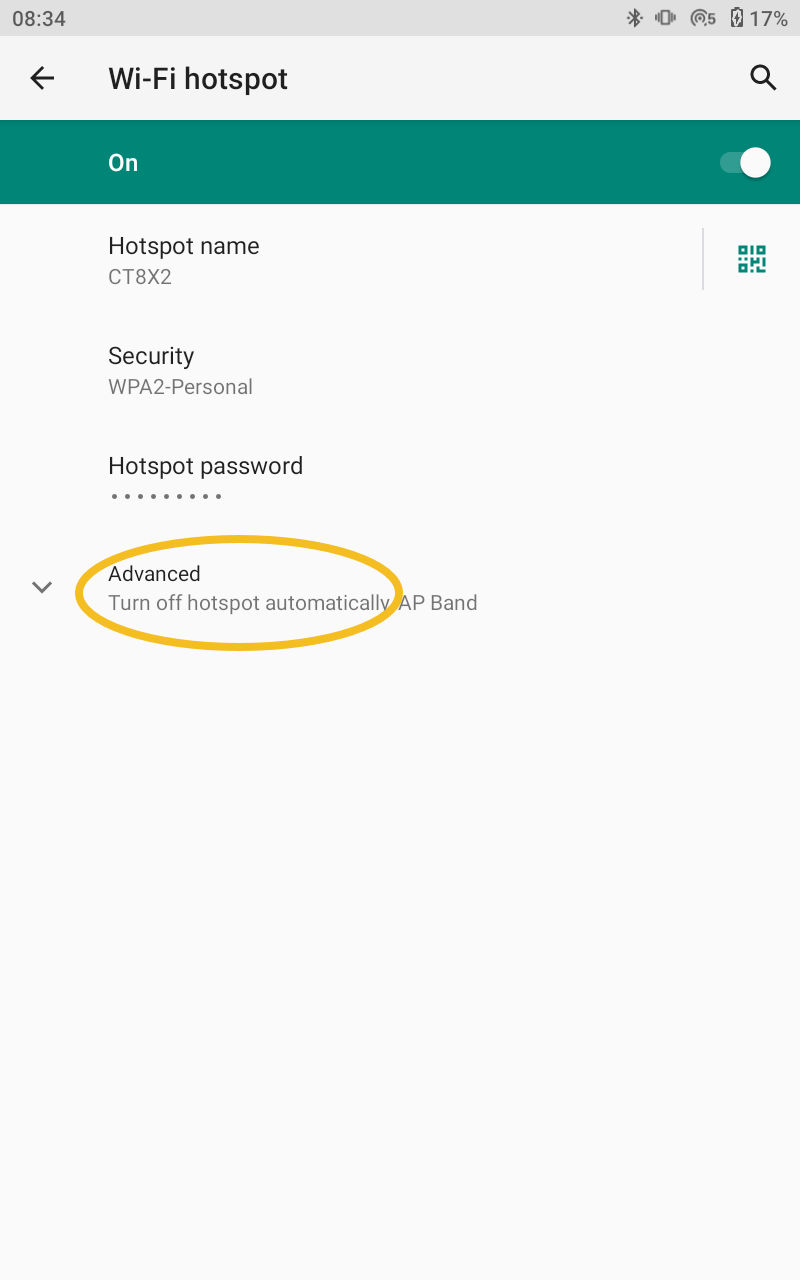
Only if using the CT8x2: Select Advanced and make sure that Turn off hotspot automatically is disabled. DO NOT change the AP Band from 2.4 GHz to 5GHz. This will cause a failure to connect.
Go back to the main screen on the wireless tablet.
Open 3D-MC.
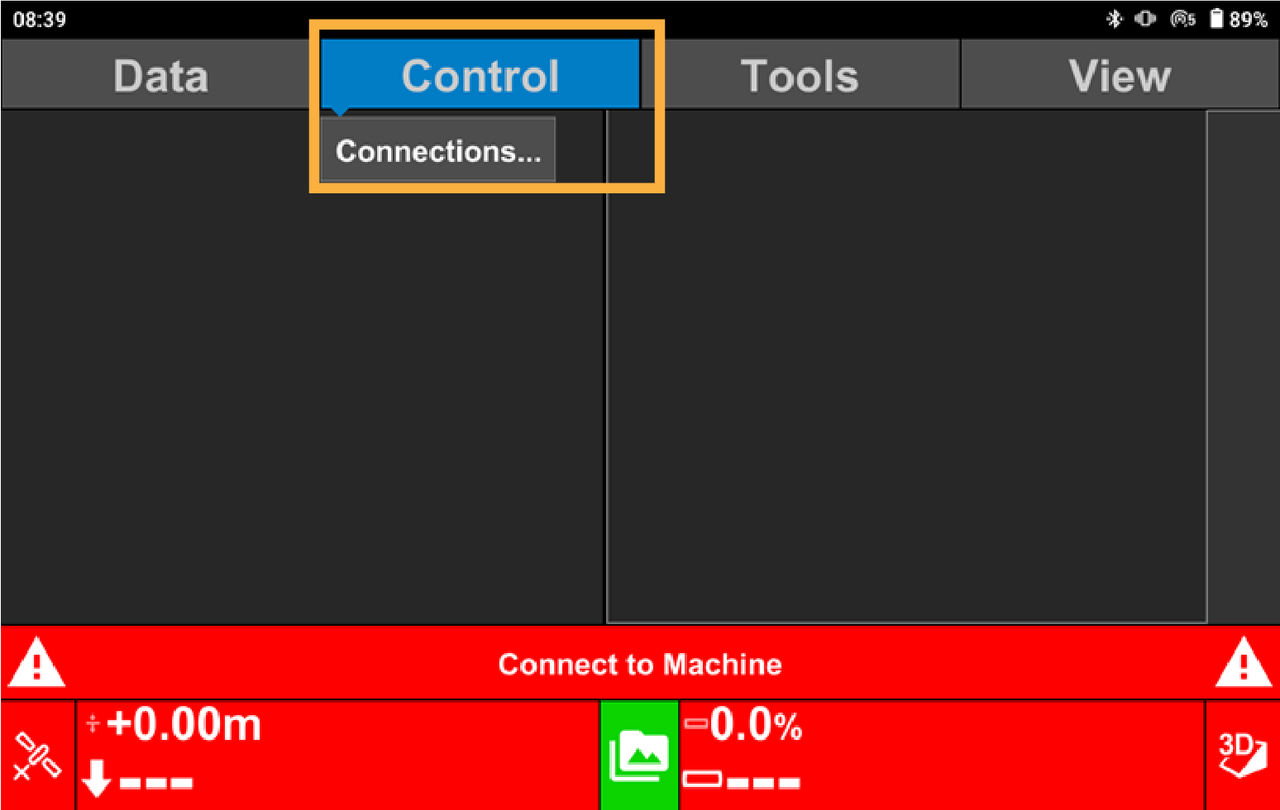
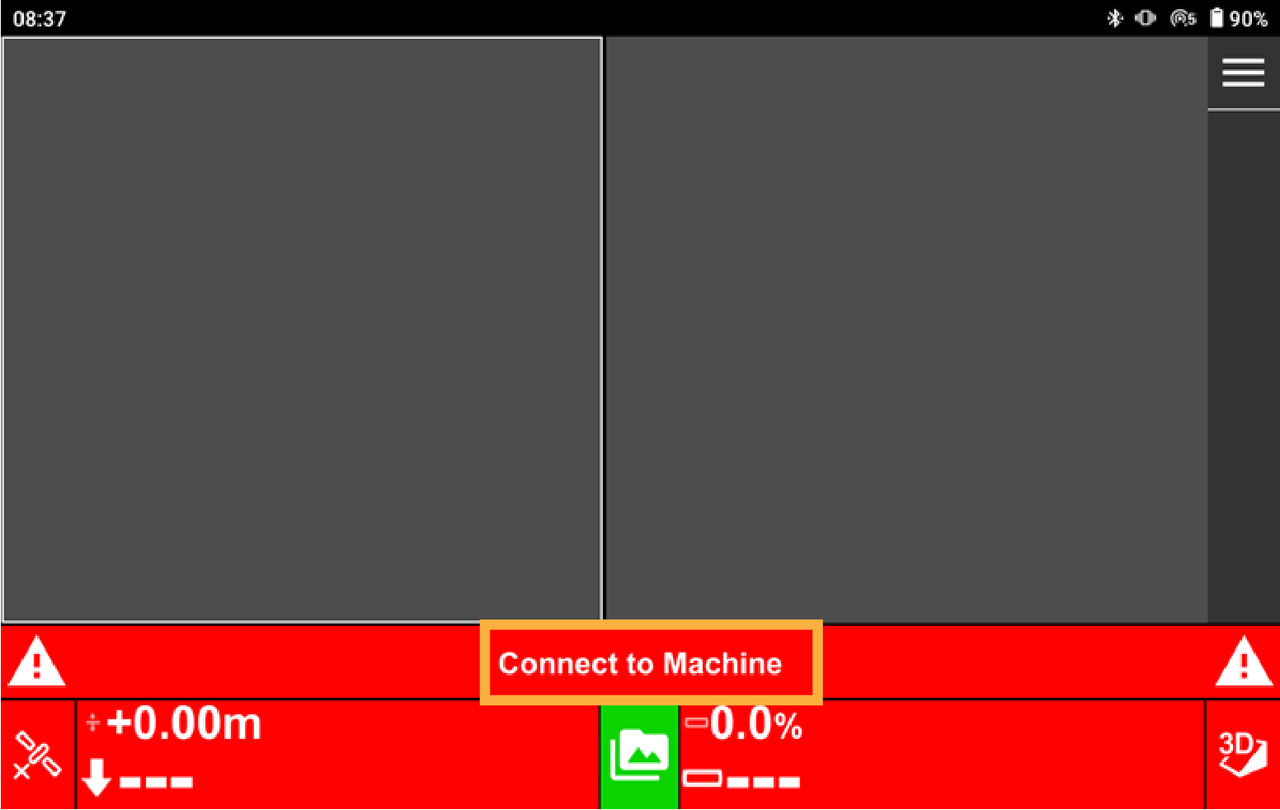
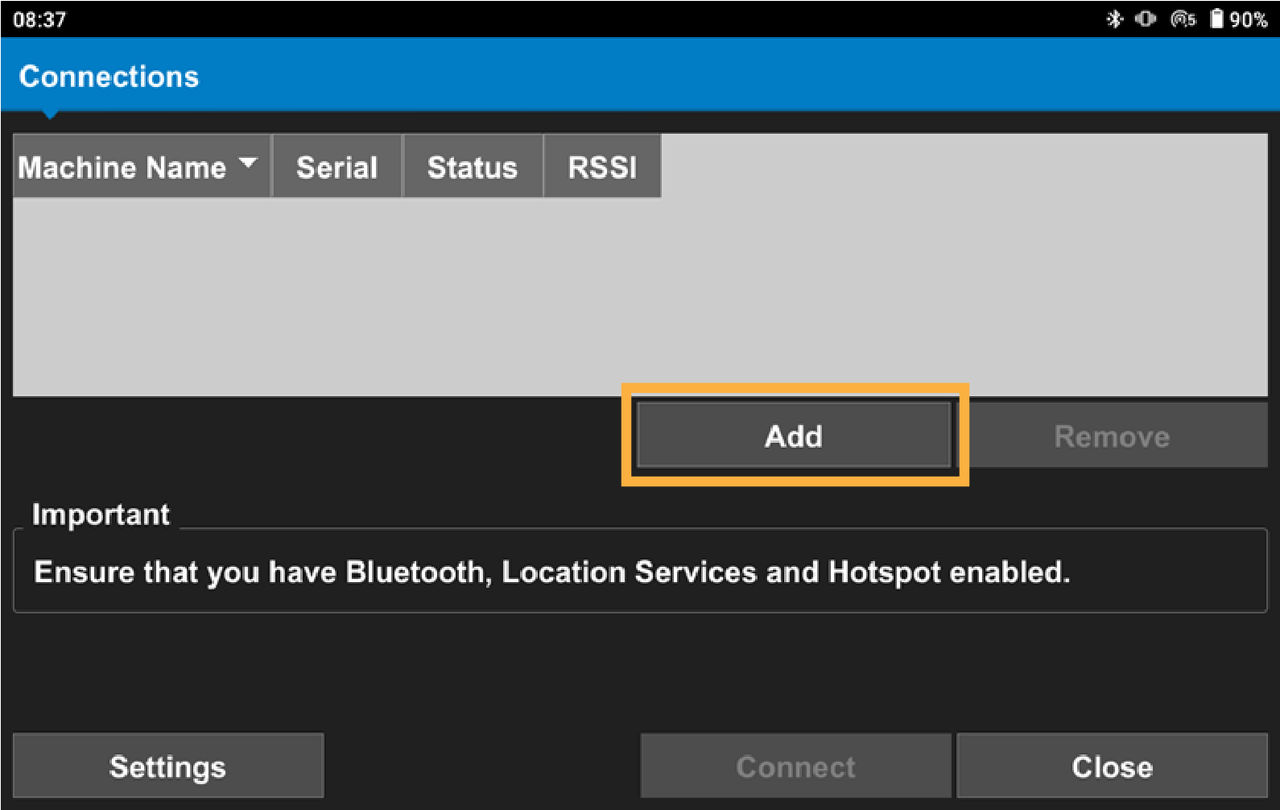
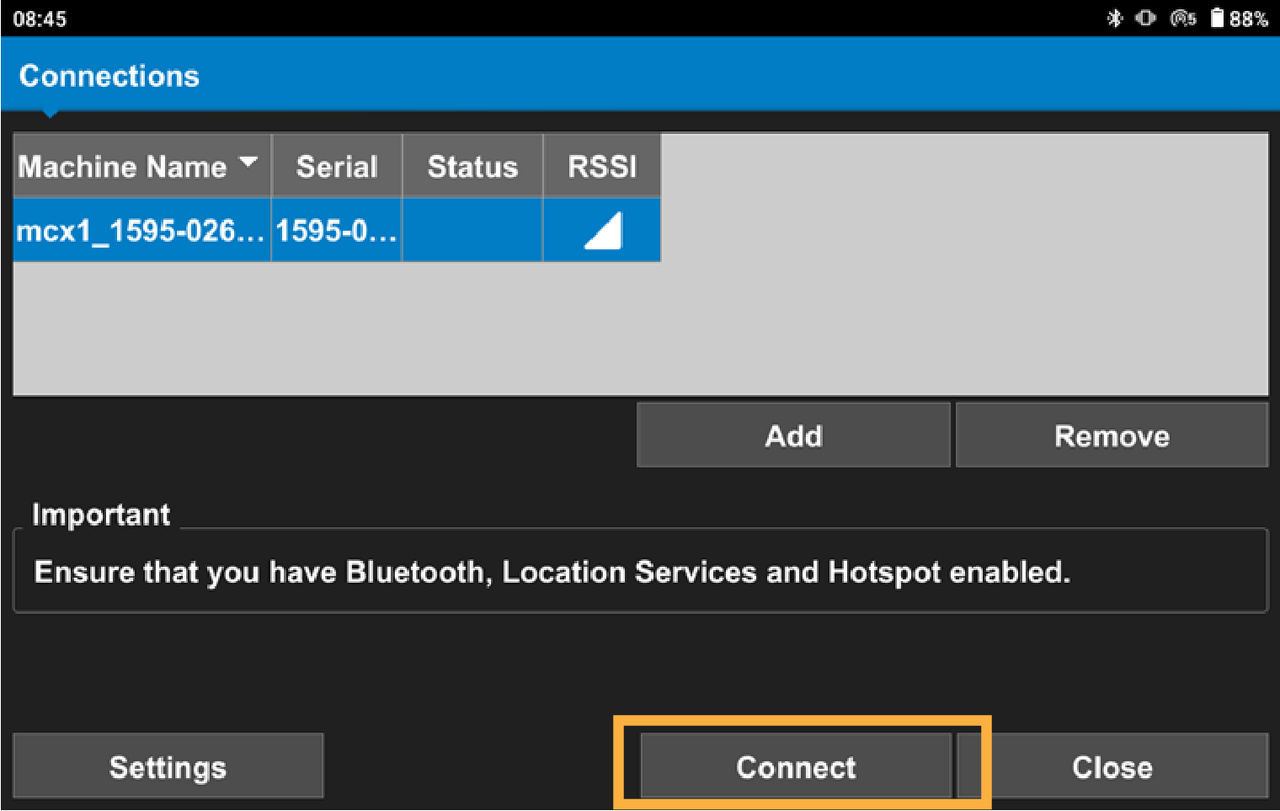
Select the Connect to Machine banner or ControlConnections.
ADDITIONAL INFORMATION:
Select Add to show the Add Machine screen.
ADDITIONAL INFORMATION:
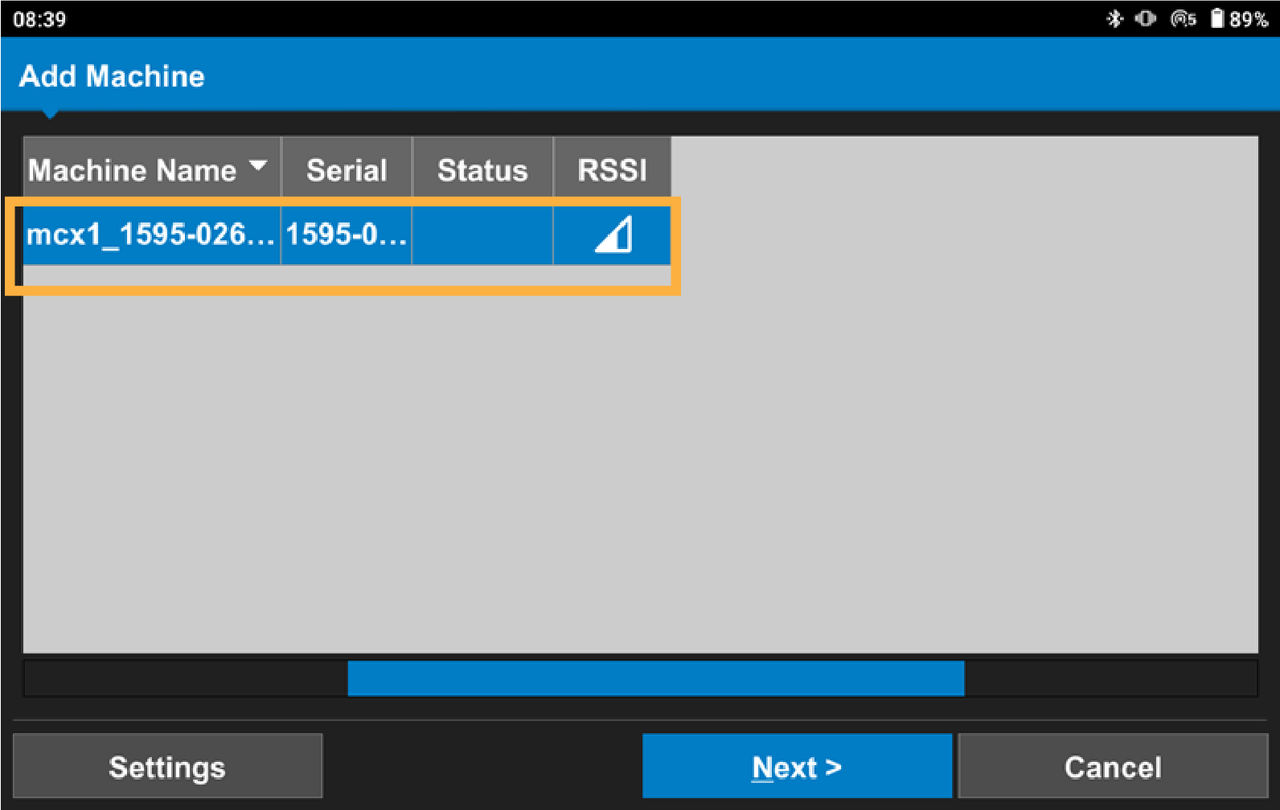
Select the MCX device.
ADDITIONAL INFORMATION:
Select Next to make a Bluetooth connection between MCX and the wireless tablet.
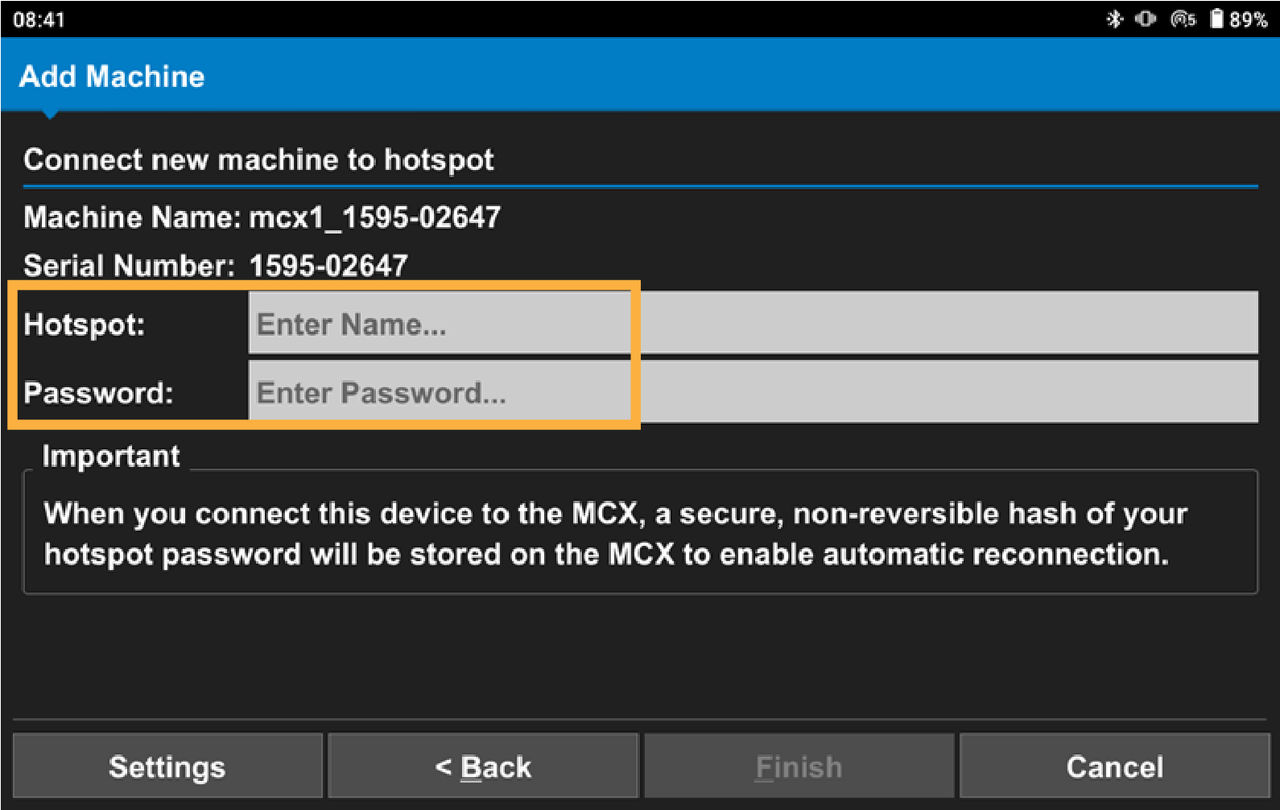
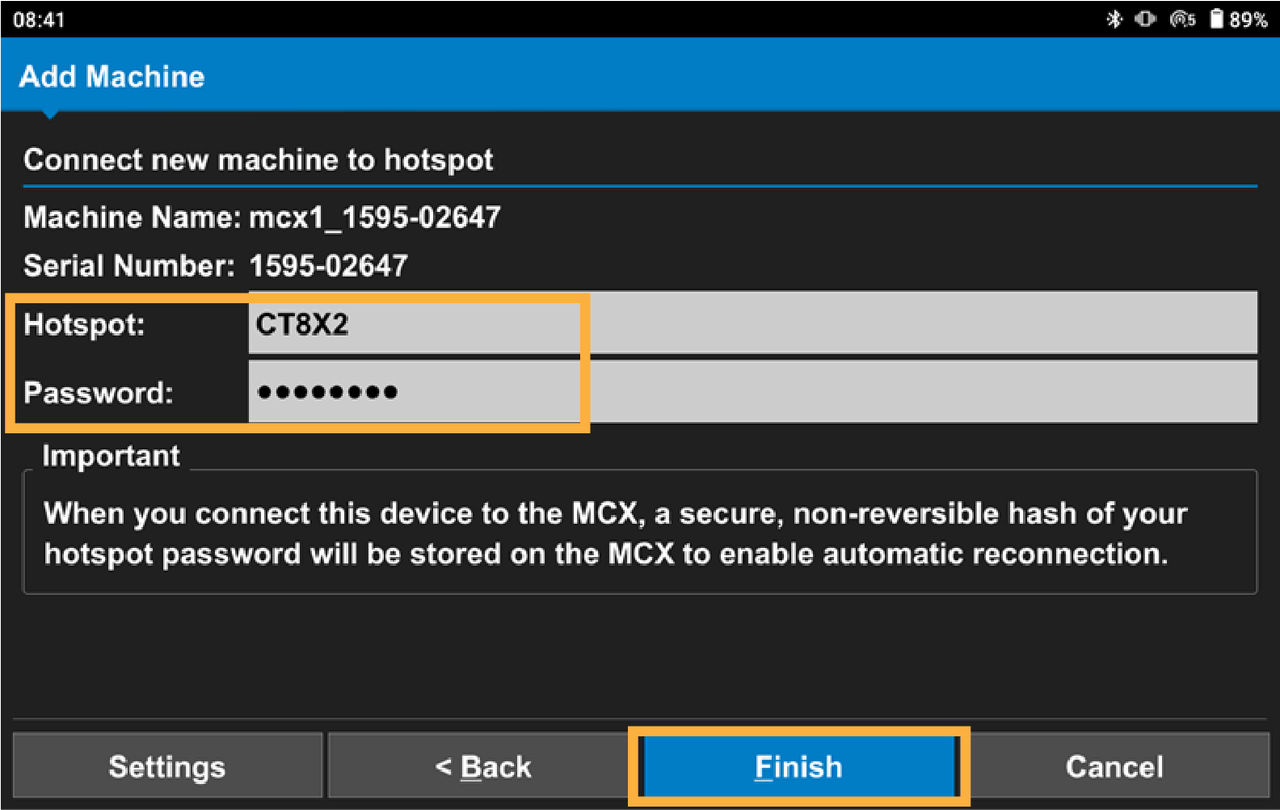
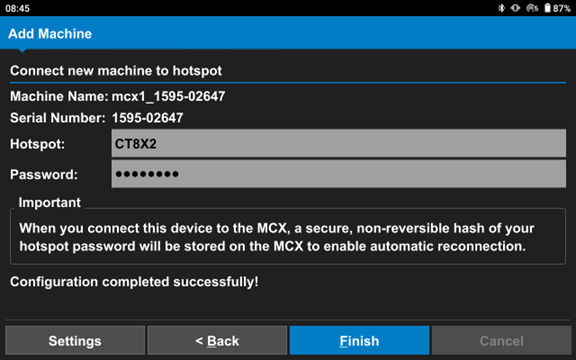
Enter the wireless tablet Hotspot and Password.
ADDITIONAL INFORMATION:
Select Finish to use Bluetooth to send the hotspot and password to the MCX.
ADDITIONAL INFORMATION: The Configuration completed successfully! message shows.
Select Connect to set a Hotspot connection from the MCX to the wireless tablet.