
- Select .ADDITIONAL INFORMATION:
Figure: Excavator auto control 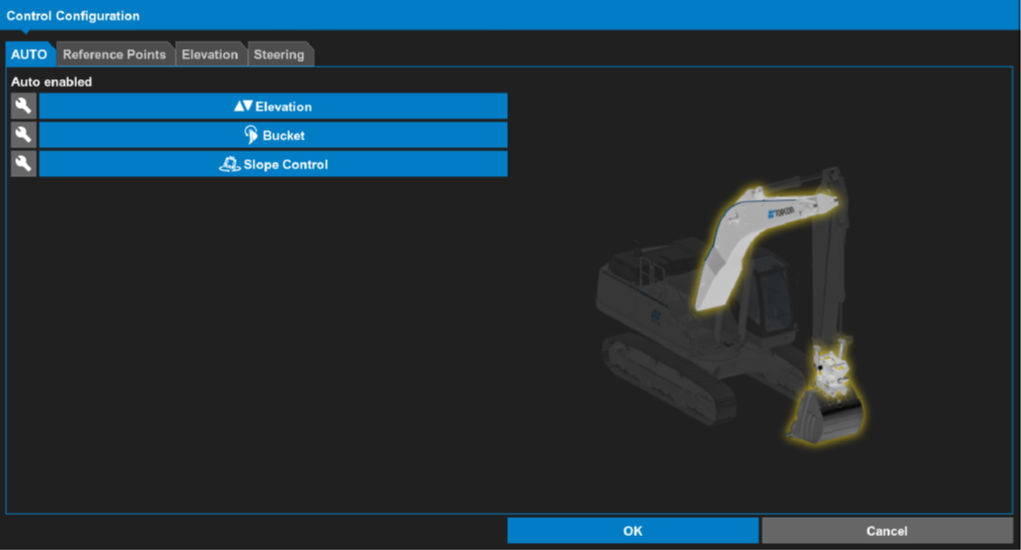
- Select
 adjacent to Elevation or Bucket to open the Advanced Control Configuration screen with the Elevation tab active.ADDITIONAL INFORMATION:
Figure: Advanced control configuration elevation tab 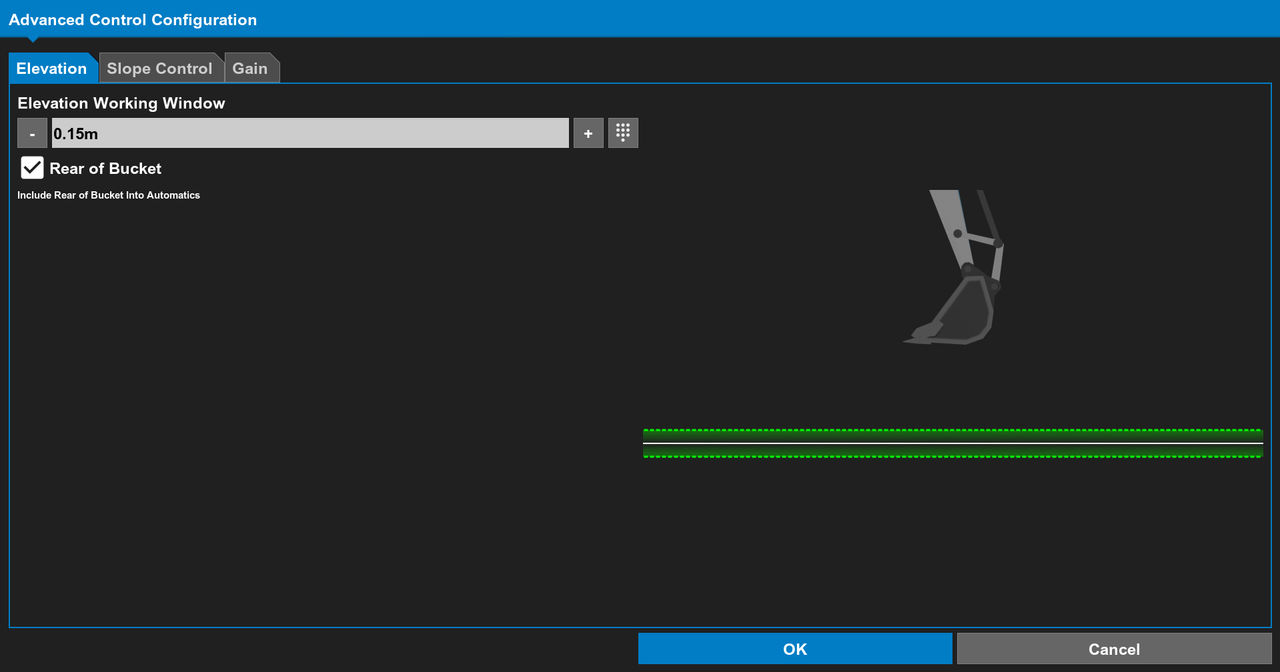
- Select + or - to increment or decrement the Elevation Working Window value.ADDITIONAL INFORMATION:The Elevation Working Window setting controls where the automatic functions start. The maximum working window setting is 1.3 ft. (40 cm). The system applies the working window above and below the active surface. The working window shows below the bucket.
- Select
 to configure an Elevation Working Window value.ADDITIONAL INFORMATION:
Figure: Configure numerical value 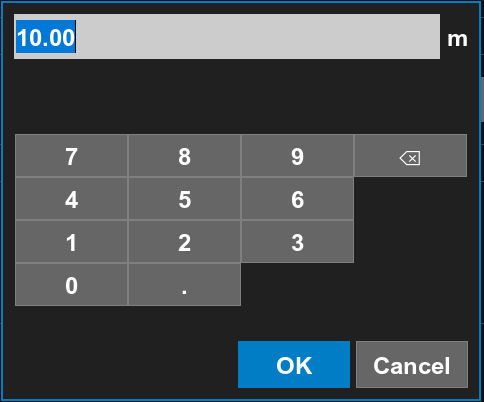
- Select Rear of Bucket to include the rear of the bucket in the working window and keep it above the design surface.ADDITIONAL INFORMATION:Note:Additional advanced configuration is available when the active attachment is a Norimen bucket.
- If necessary, select Lock bucket slope.ADDITIONAL INFORMATION:When selected, you can set the bucket angle to gravity.
Figure: Advanced control configuration bucket 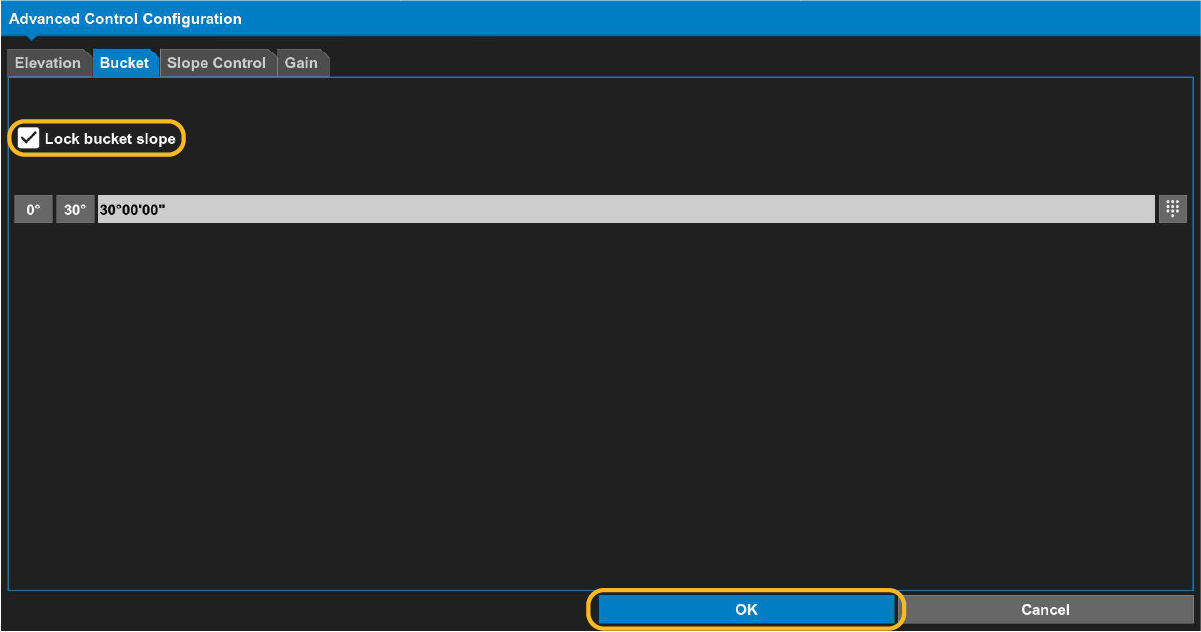
- Select OK.
Previous:
Enable auto control
myTopcon NOW! support
Take your Topcon experience to the next level with myTopcon NOW! This platform is a self-service tool for your desktop or mobile device.





