
Gain settings let you adjust the automatic performance for the specific operation. The gain setting controls the strength of the automatic system response. High gain gives more response, while low gain gives less response. Gain settings must be tested in automatic mode.
- Select .ADDITIONAL INFORMATION:
Figure: Excavator auto control 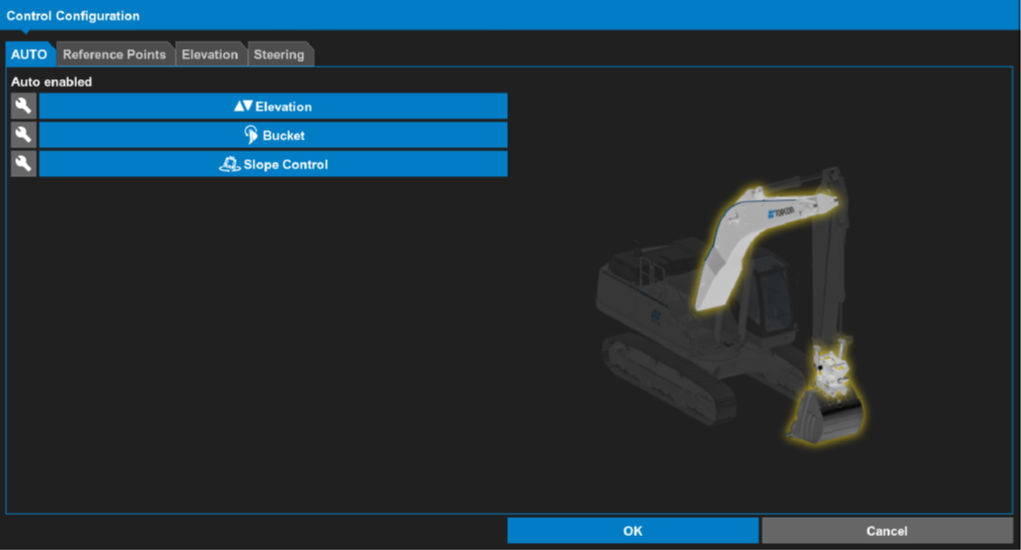
- Select
 adjacent to Elevation or Bucket to open the Advanced Control Configuration screen with the Elevation tab active.ADDITIONAL INFORMATION:
Figure: Advanced control configuration elevation tab 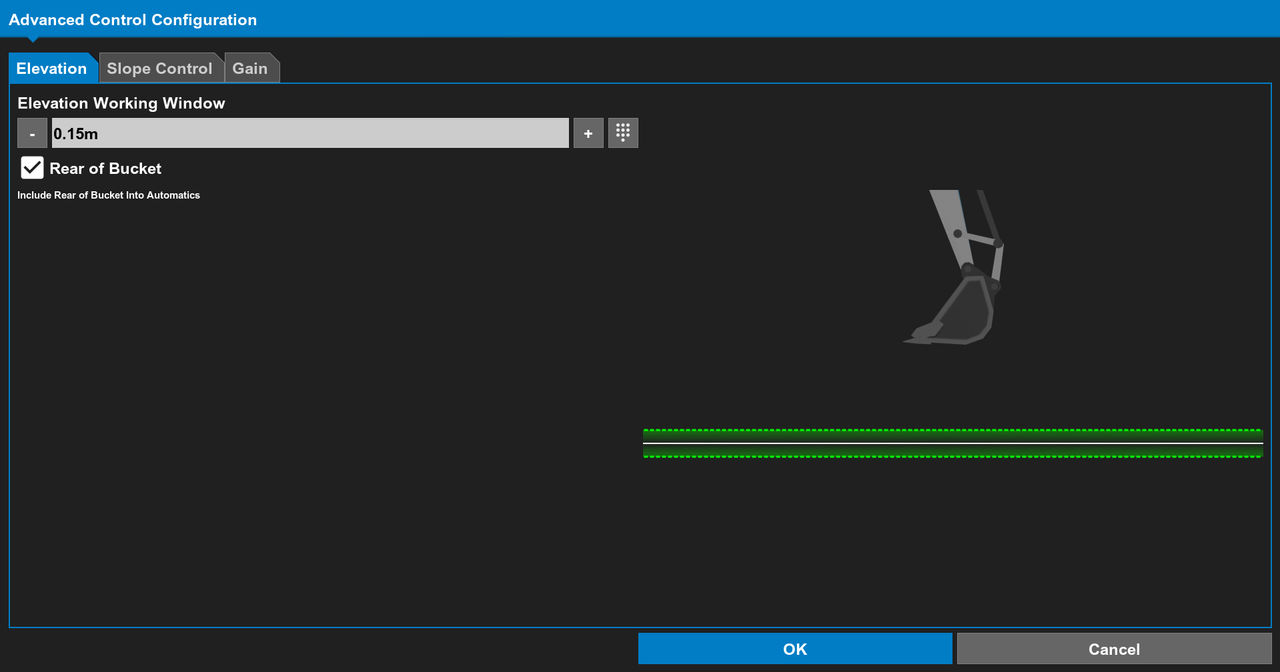
- Select the Gain tab.ADDITIONAL INFORMATION:
Figure: Advanced control configuration gain tab 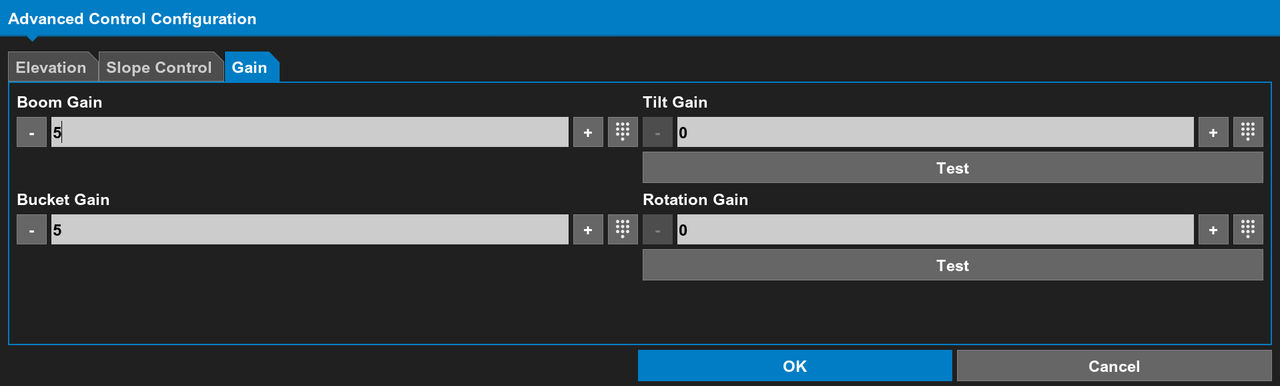
- Configure the Boom Gain and Bucket Gain settings.ADDITIONAL INFORMATION:Select + or - to increment or decrement the Boom Gain and Bucket Gain values.Select
 to configure a precise value.
 - Select OK.
- Configure Tilt Gain and Rotation Gain settings.ADDITIONAL INFORMATION:Select + or - to increment or decrement the , Tilt Gain and Rotation Gain values.Select to configure a precise value.
- Select Test to open the Tilt and Rotation Gains Test dialog.
- Complete the instructions to tilt or rotate away from the zero position.
- Engage automatics.ADDITIONAL INFORMATION:The implement must reliably reach the initial zero position in a smooth and steady motion and not shake.
Figure: Tilt or rotation gains test 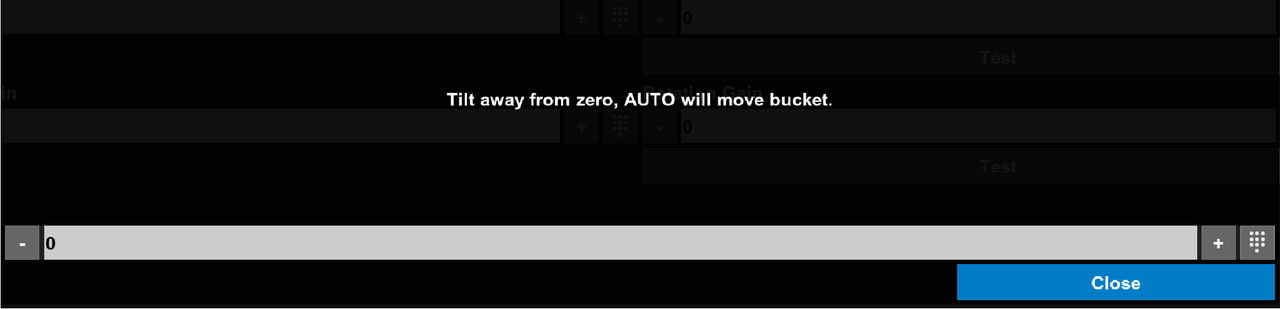 It is necessary to adjust gain settings until operation is smooth.Notice:Decrease the gain setting by two units after you find the correct gain setting. This improves the slope control performance.
 - Select OK.
Previous:
Advanced slope control configuration
Next:
Bucket Control
myTopcon NOW! support
Take your Topcon experience to the next level with myTopcon NOW! This platform is a self-service tool for your desktop or mobile device.





